

Product guide
How Vekrin works
Vekrin brings the important records around your household together — possessions, wardrobe, jewellery, vehicles, receipts, documents, bills, warranties and spending — then connects them so they are easier to organise, understand and retrieve when you need them.
Explore Vekrin
Start with your household, then add the things Vekrin should understand: possessions, clothing and jewellery, vehicles, documents, receipts, bills and warranties. Each card opens that guide section.
- Home dashboard
- Inventory
- Wardrobe
- Jewellery Box
- Garage
- Documents
- Scan a receipt
- Review receipt results
- Room Scan (internal beta)
- Bills
- Spending
- Connected Inbox
- Reminders
- Warranties
- Link evidence
- Add menu
- Household members
- Insurance Pack
- Household Intelligence
- Vekrin Assistant
- Vekrin Voice
- Memory (internal beta)
- Search & notifications
- Account & settings
What do you want to do?
Jump straight to the instructions for one task.
- Add a new possession
- Scan a receipt
- Add a vehicle
- Add a document
- Add a warranty
- Add a bill or account
- Review household spending
- Connect or review Gmail invoices
- Set reminder preferences
- Invite a household member
- Ask Vekrin Assistant
- Create an Insurance Pack
- Export a Vehicle Record
- Manage settings, homes or account data
Your first 10 minutes with Vekrin
A concrete starting point if you are not sure where to begin. After creating your home, any of these is a good first step — a possession, a vehicle, a receipt or a document.
- 1Create your home.
- 2Add something important — a possession you would miss.
- 3Scan a receipt.
- 4Upload a document.
- 5Add a bill or a warranty.
- 6Add a vehicle if your household has one.
- 7Add the dates worth remembering as reminders.
- 8Invite someone if the household is shared.
- 9Ask Vekrin a question about what you added.
- 10Generate an export when you need to hand something over.
Jump to a topic
- 1Sign up
- 2Create your home
- 3Home dashboard
- 4Add menu
- 5Add an item
- 6Scan a receipt
- 7Review receipt results
- 8Room Scan (internal beta)
- 9Link evidence
- 10Documents
- 11Warranties
- 12Bills
- 13Spending
- 14Connected Inbox
- 15Reminders
- 16Inventory
- 17Wardrobe
- 18Jewellery Box
- 19Garage
- 20Insurance Pack
- 21Household members
- 22Vekrin Assistant
- 23Vekrin Voice
- 24Memory (internal beta)
- 25Household Intelligence
- 26Search & notifications
- 27Export & sharing
- 28Account & settings
Topic 1 of 28
Sign up
What this does
How to use it
- 1Open Vekrin and choose Sign up.
- 2Enter your email and a password, or choose Continue with Google or Continue with Amazon.
- 3Confirm your email address if you signed up with a password.
- 4Enter your first and last name when asked.
- 5Continue into the short onboarding.
- 6Create your first home, or accept an invitation to an existing one.
What Vekrin does
Check
Check the email address before submitting. Confirmation links expire, so if nothing arrives within a few minutes, check spam and use Resend confirmation email. Continue with Amazon signs you in only — Vekrin receives no Amazon orders, purchases, delivery addresses or payment details.
What happens next
Screenshot pending
Screenshot pending: the sign-up and onboarding screens are not in the approved screenshot library yet, so no image is shown here rather than showing unrelated UI.
Topic 2 of 28
Create your home
What this does
How to use it
- 1In onboarding, enter a name for the home.
- 2Choose your country or region.
- 3Choose your currency.
- 4Choose your language.
- 5Select Create my home.
- 6To add another home later, open the home selector at the top of the dashboard.
What Vekrin does
Check
Owners can rename, archive, restore or permanently delete a home; deletion requires typing its exact name. Non-owners can leave, but an owner cannot leave the home they own. Archive first when you may need it later.
Tip
If you look after a second property, create it as a separate home rather than mixing rooms together.
What happens next
Screenshot pending
Screenshot pending: the home setup step of onboarding is not in the approved screenshot library yet.
Topic 3 of 28
Home dashboard
What this does
How to use it
- 1Use the home selector to confirm you are in the right home.
- 2Read the summary tiles for a quick view of what is recorded.
- 3Open anything that is marked as needing attention.
- 4Use a quick action to add or open a record.
- 5Use the bottom navigation to move between areas.
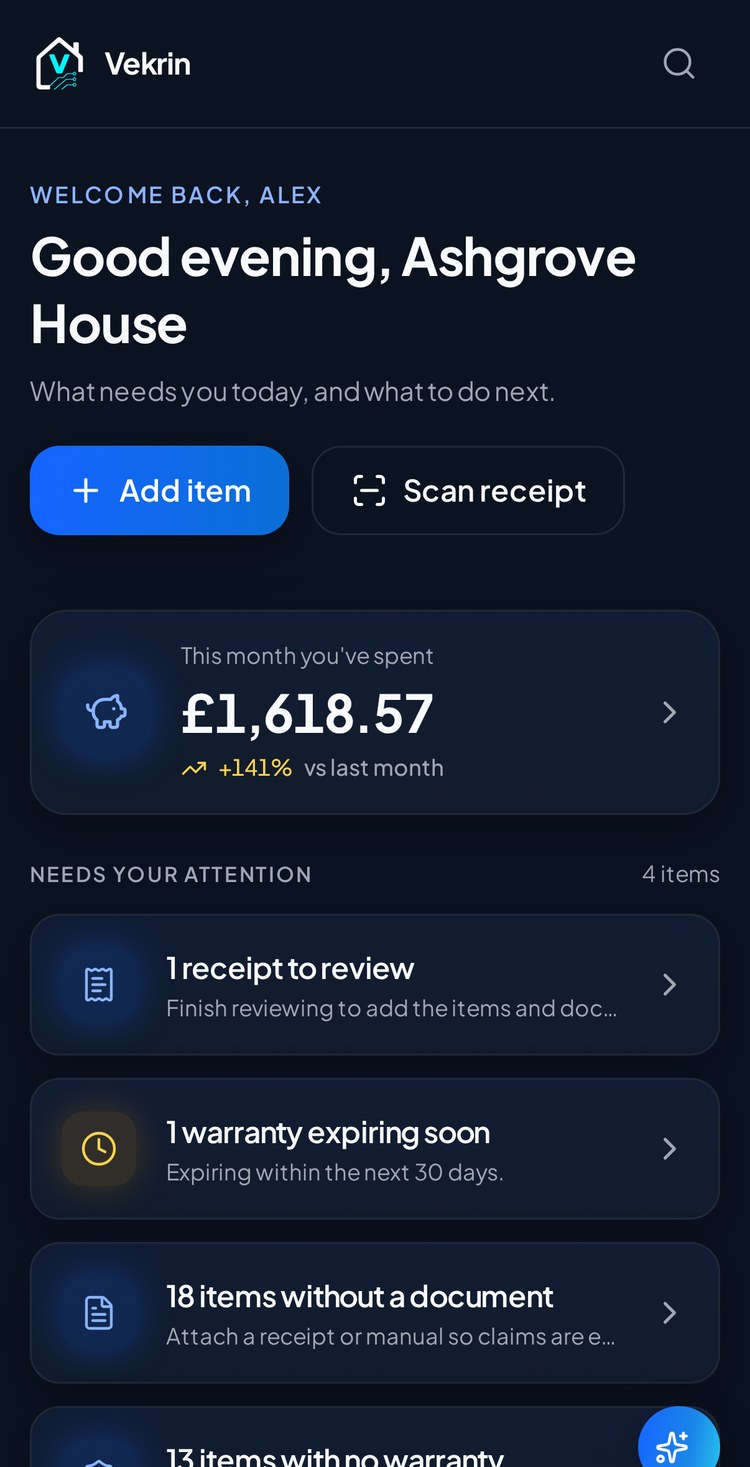
On this screen
- 1Home selector — switch between the homes you own or belong to.
- 2Notifications — reminders and updates that need a look.
- 3Search — find inventory items and vehicles in this home.
- 4Home summary — what is recorded, protected and outstanding, including warranties expiring, bills due, an inspection due, a vehicle insurance renewal or an overdue service.
- 5Quick actions — shortcuts to the actions you use most.
- 6Bottom navigation — Home, Inventory, Add, Bills, More.
What Vekrin does
Check
If the numbers look wrong, check the home selector first — you may be looking at a different home.
What happens next
Topic 5 of 28
Add an item
What this does
How to use it
- 1Tap + Add, then Add item.
- 2Enter the item name.
- 3Choose the room it lives in.
- 4Choose a category.
- 5Enter what you paid, if you know it.
- 6Add serial and model details where you have them.
- 7Add photos of the item.
- 8Save.
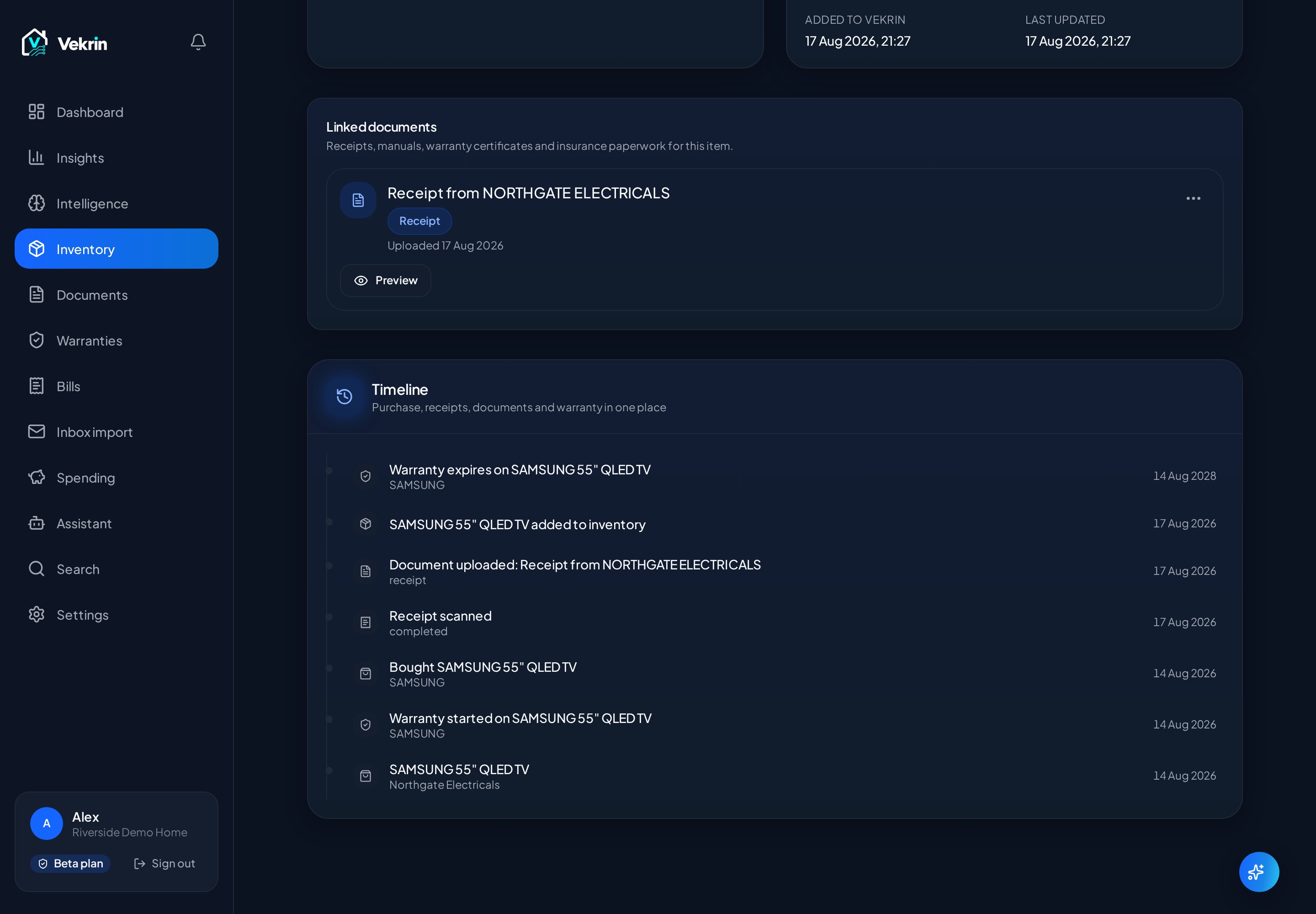
On this screen
- 1Item name and description.
- 2Room and category.
- 3Recorded values — what you paid and, where supported, replacement value.
- 4Serial and model information.
- 5Photos.
- 6Linked receipt, documents and warranty.
What Vekrin does
Check
Check the source as well as the figure. Purchase and professional values keep their evidence or report provenance; owner estimates are your own figures. Vekrin estimates show their status and confidence, never replace stronger values, and are not professional valuations or guarantees. Clothing and specialist categories are excluded from automatic estimates.
Tip
Start with your most valuable or most frequently used possessions rather than trying to record everything at once.
What happens next
Topic 6 of 28
Scan a receipt
What this does
How to use it
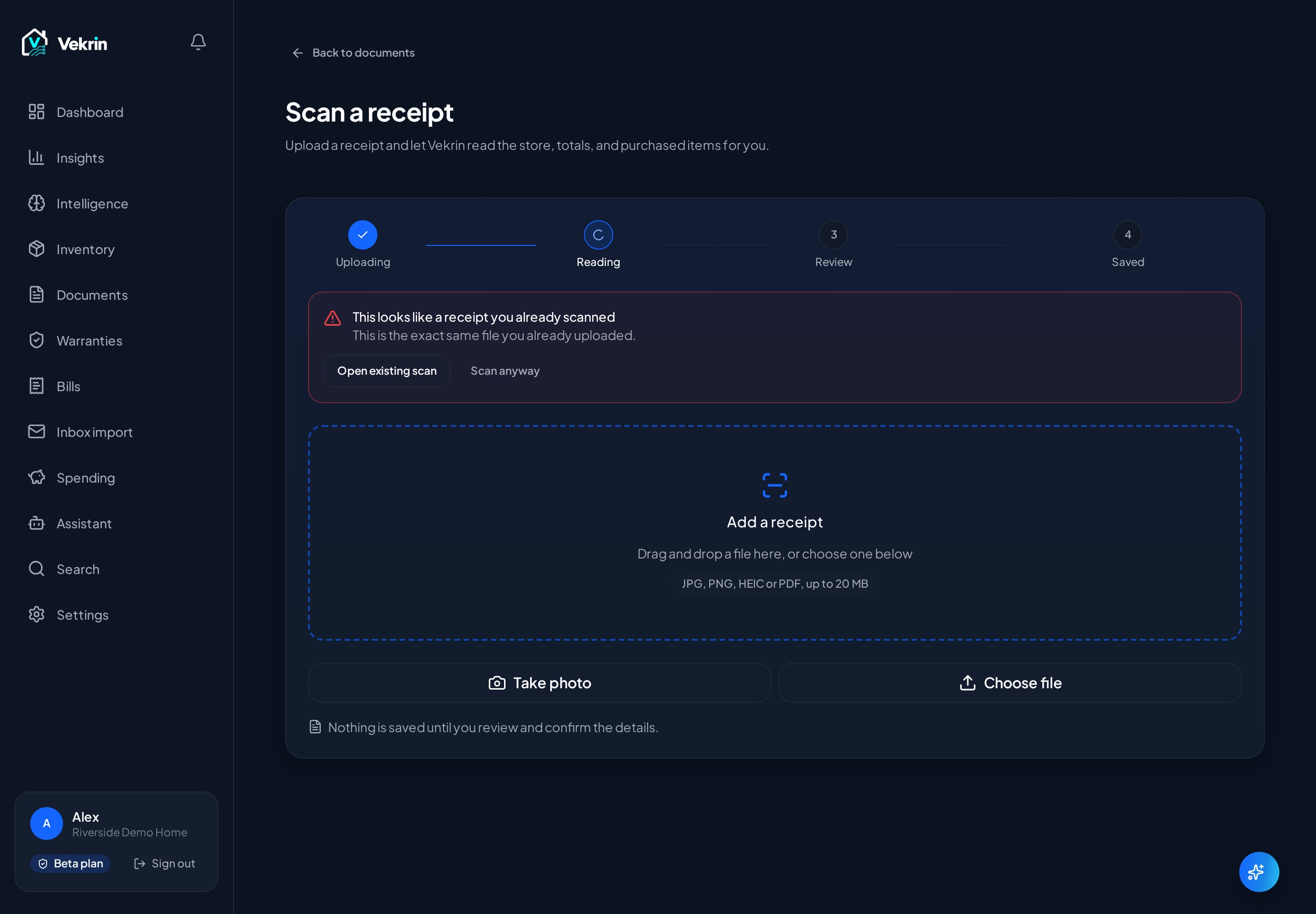
- 1Tap the blue + Add button.
- 2Tap Scan receipt.
- 3Take a photo, or choose an existing file.
- 4Keep the whole receipt in frame, including the totals at the bottom.
- 5Wait while Vekrin reads it.
- 6Continue to the review screen.
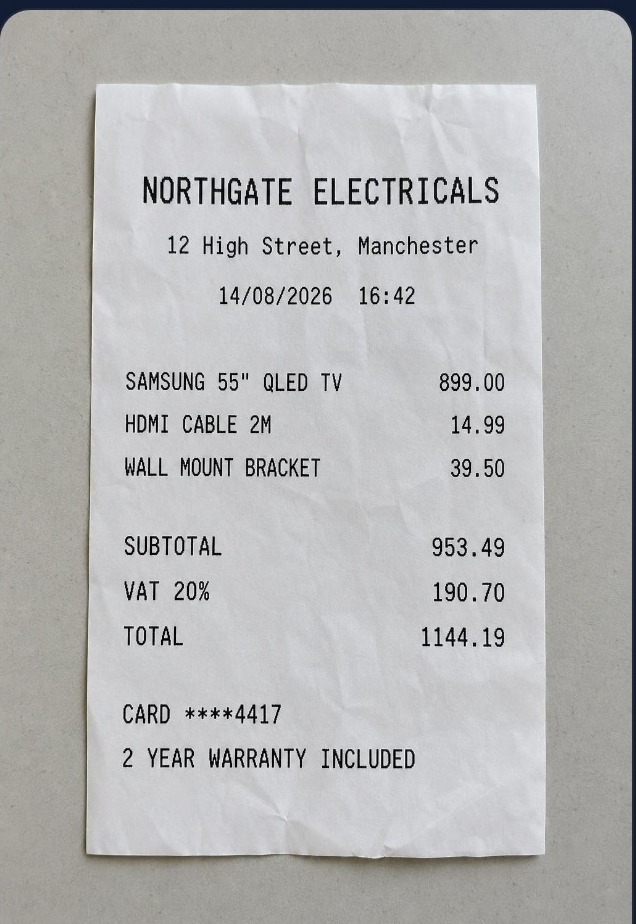
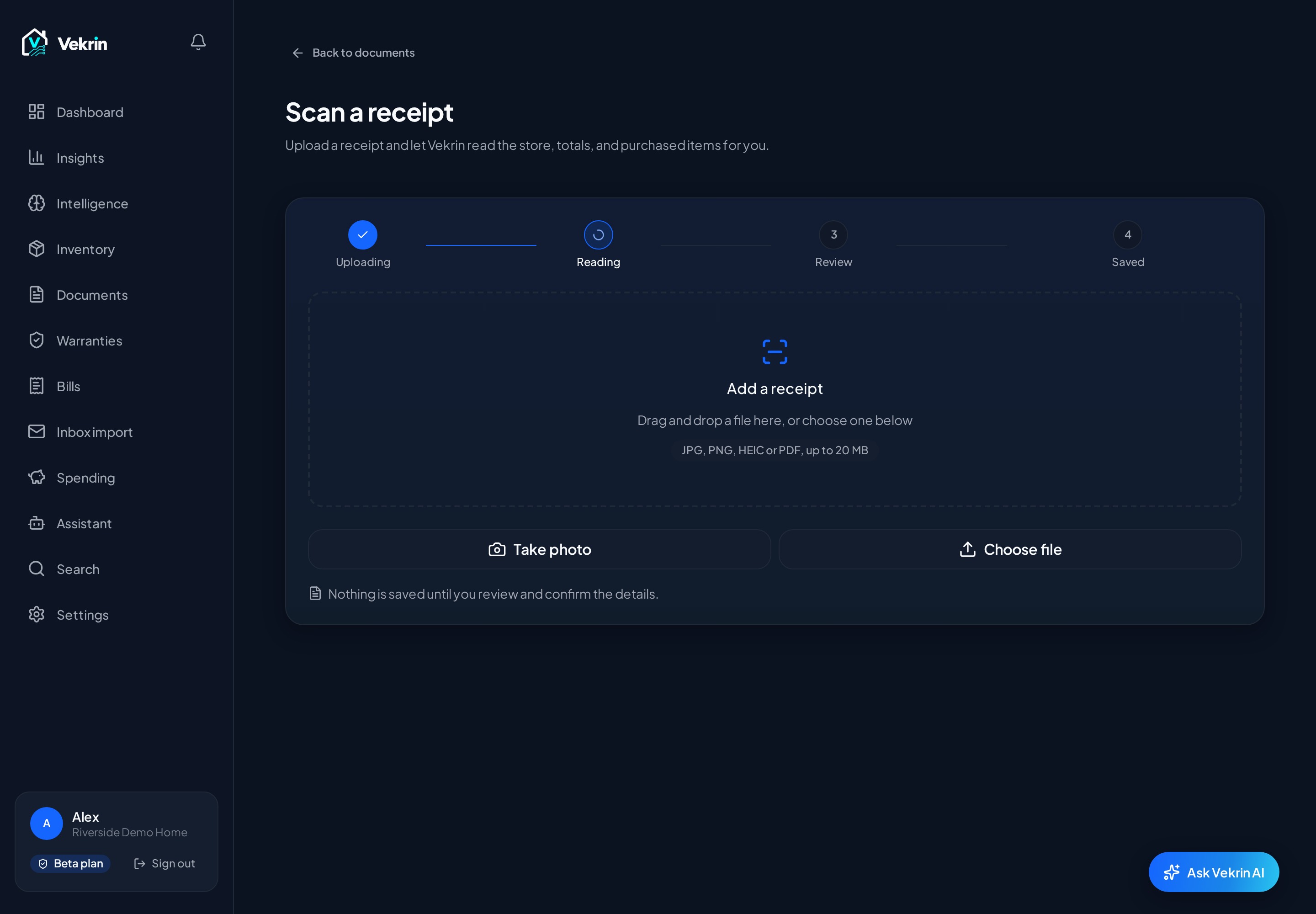
On this screen
- 1Take photo — use the camera for paper receipts.
- 2Choose file — upload a photo or PDF you already have.
- 3Processing status — shows how far the scan has got.
- 4Retry — available if a scan fails.
What Vekrin does
Check
Processing normally takes a few seconds. If it fails, the scan stays in your list so you can retry it rather than starting again.
Check
If the same receipt is uploaded twice, Vekrin points you at the existing scan instead of creating a duplicate.
What happens next
Topic 7 of 28
Review receipt results
What this does
How to use it
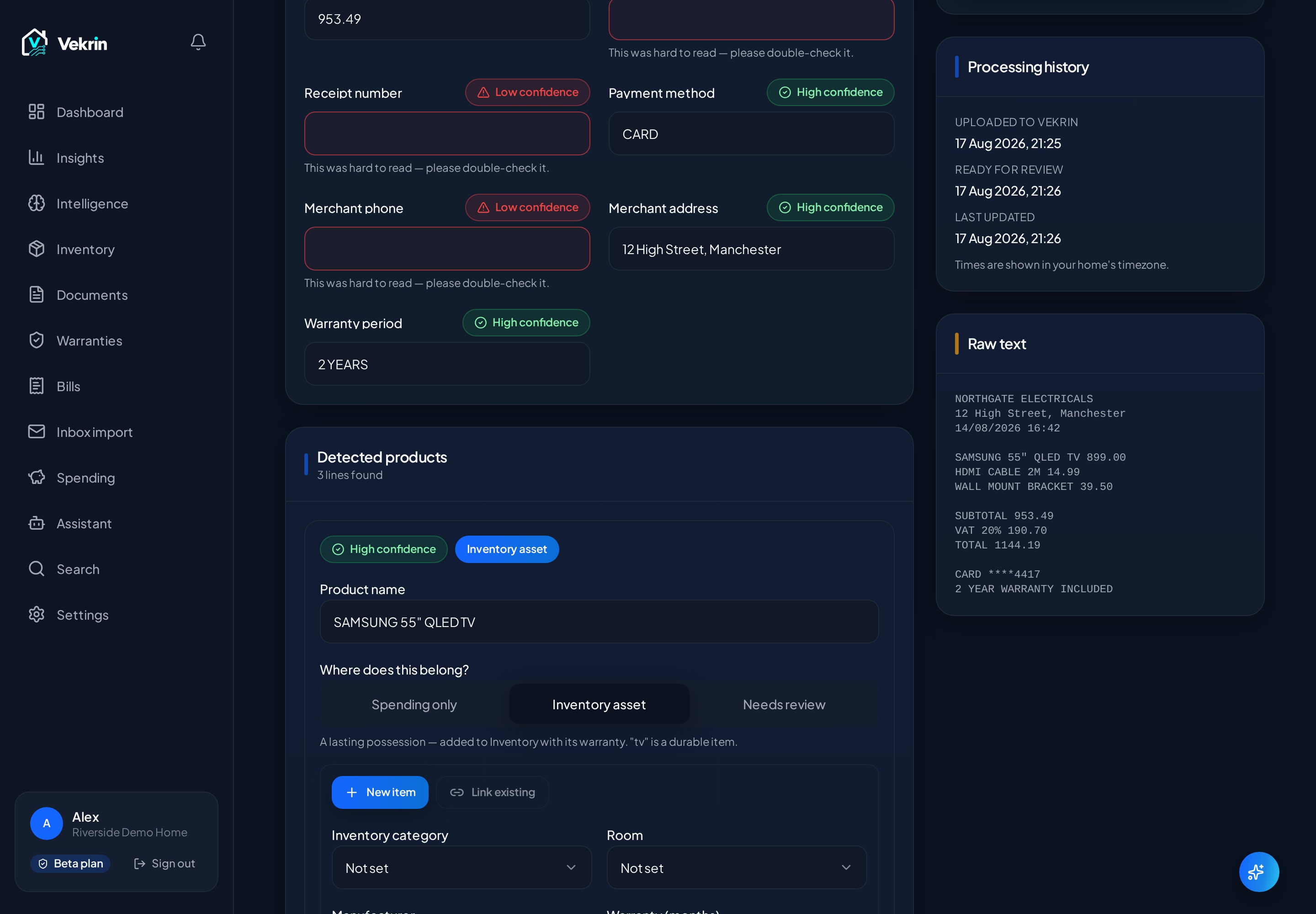
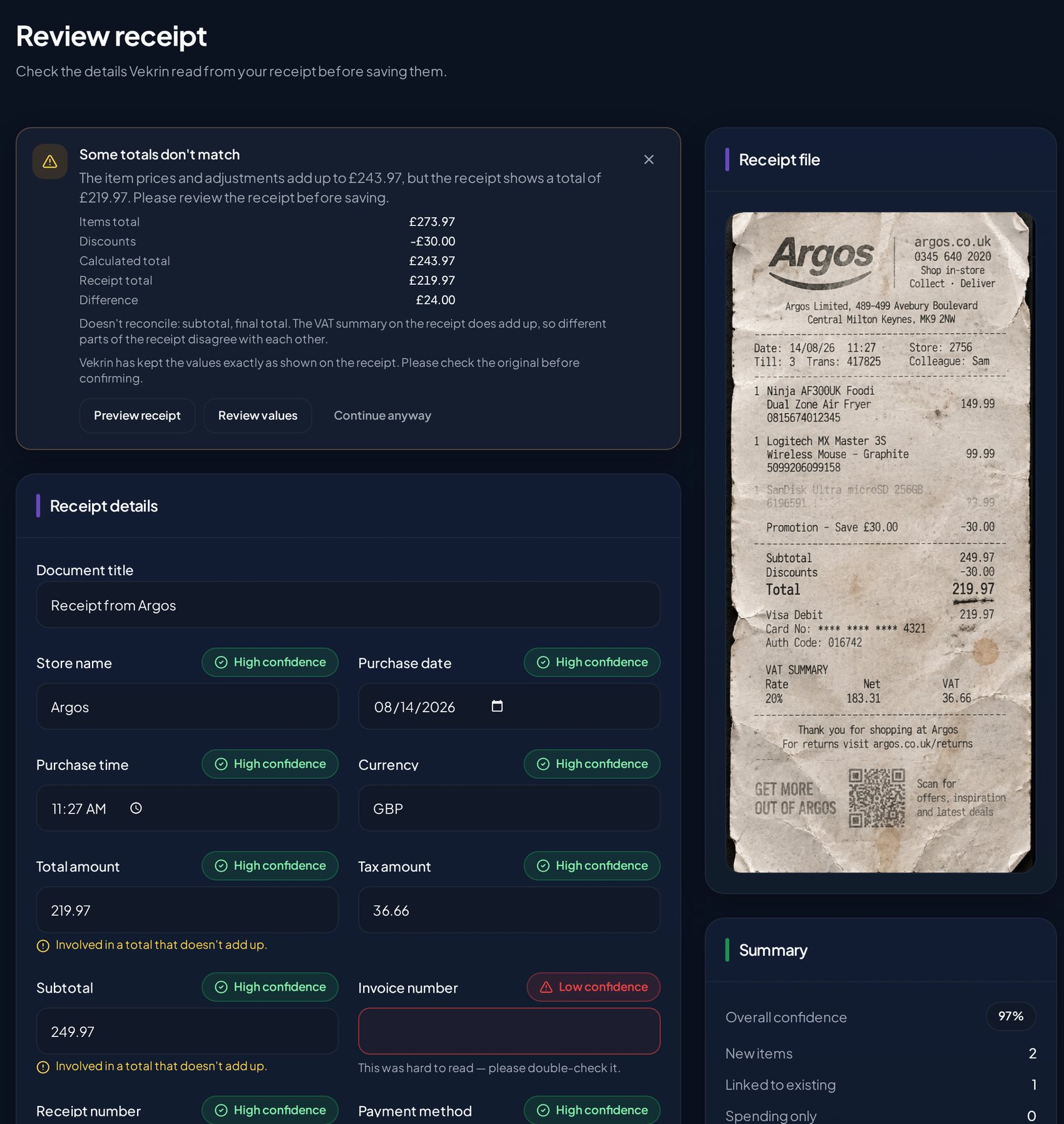
- 1Check the merchant name and purchase date.
- 2Check the totals against the printed receipt.
- 3Open the line items and check the products.
- 4Correct any field that looks wrong by tapping it.
- 5Use Preview to compare against the original image.
- 6Save the receipt.
On this screen
- 1Merchant and date.
- 2Totals — subtotal, tax and receipt total.
- 3Confidence indicator on each detected field.
- 4Line items detected on the receipt.
- 5Preview of the original receipt image.
- 6Save, once you have checked the values.
What Vekrin does
Check
Vekrin never silently rewrites printed values. If the numbers do not add up it shows a reconciliation panel: items total, subtotal, tax, calculated total, receipt total and the difference — including where that difference looks like a saving or an overpayment. Review it, then decide.
Check
A totals mismatch is a prompt to look, not an error. Discounts, deposits and rounding all produce legitimate differences.
What happens next
Topic 8 of 28
Room Scan (internal beta)
What this does
How to use it
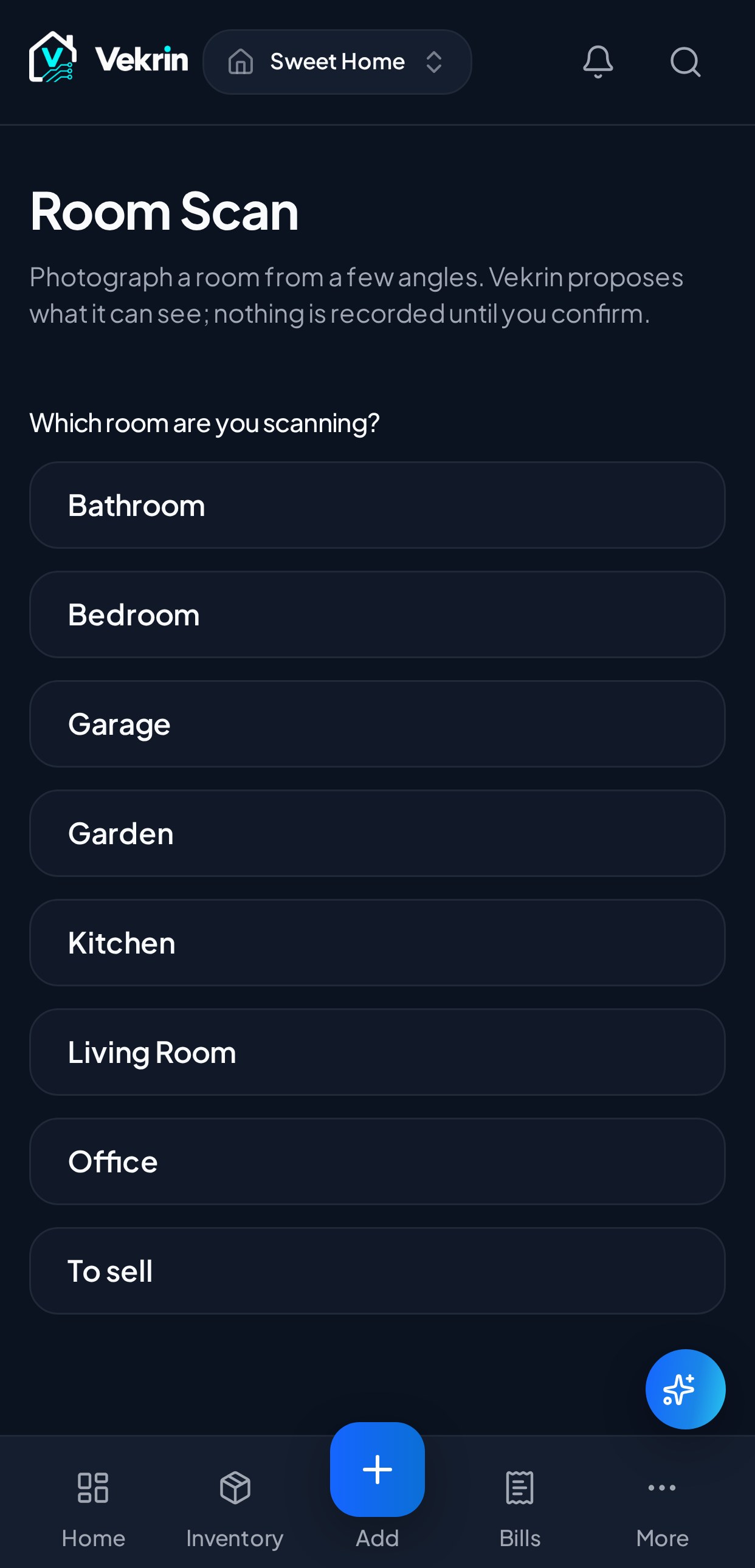
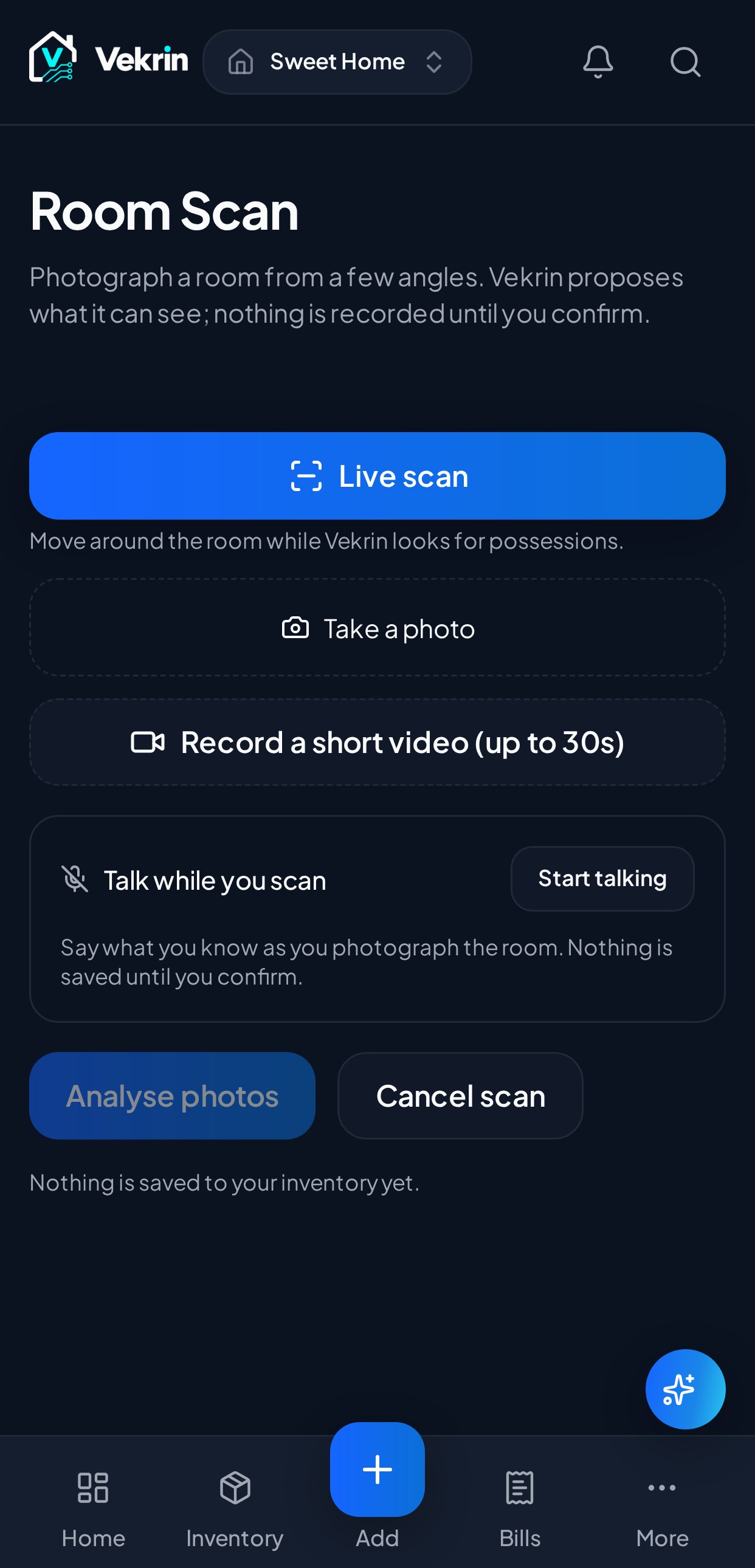
- 1Open + Add and choose Room Scan if it is available to your account.
- 2Choose a room in the current home.
- 3Capture up to five clear photos, or use the supported live/video capture.
- 4Let Vekrin analyse what is visible.
- 5Review every proposal: ignore it, match it to an existing item or create a new item.
- 6Confirm the final review to save your decisions.
On this screen
- 1Choose the room before capture.
- 2Capture up to five useful views.
- 3Analysis creates proposals, not records.
- 4Review ignore, match or create decisions.
- 5Only final confirmation writes to Inventory.
What Vekrin does
Check
Check names, room, category and matches carefully. A room image may contain partial, repeated or unidentifiable objects. Camera and microphone access stop when you leave or close the scan.
Check
Internal beta, limited availability: the entry point and server both require an approved beta or admin account.
What happens next
Topic 9 of 28
Link evidence
What this does
How to use it
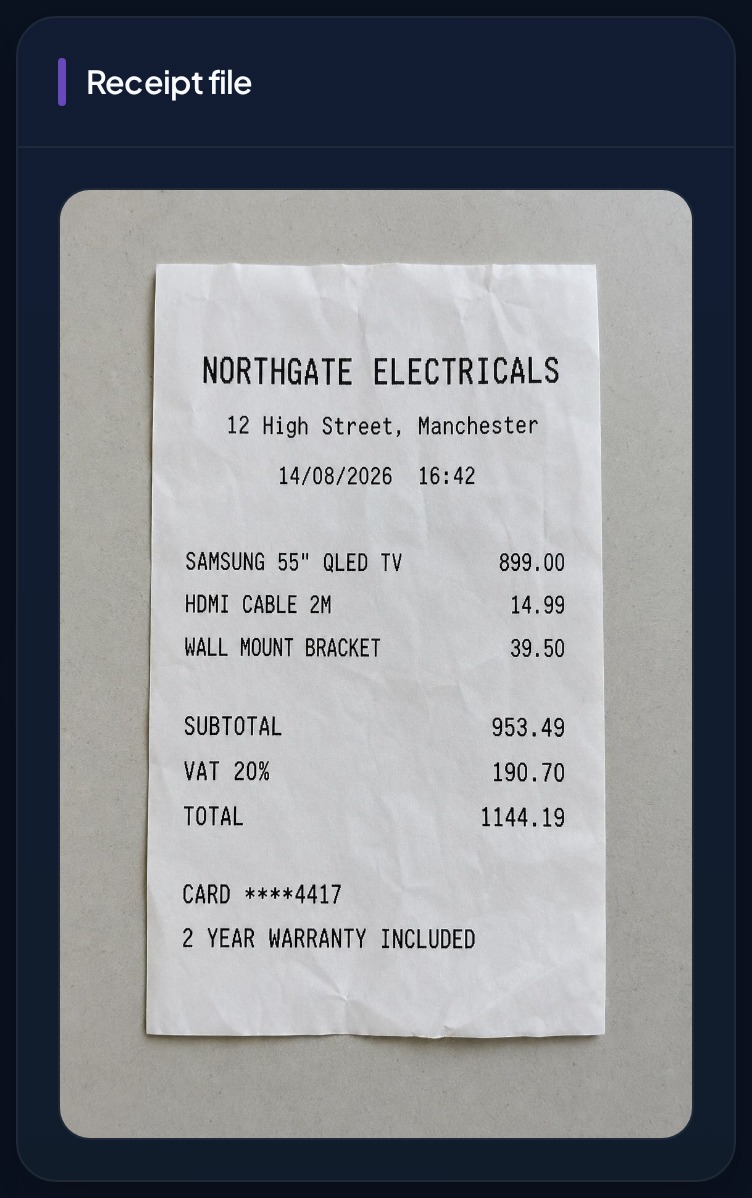
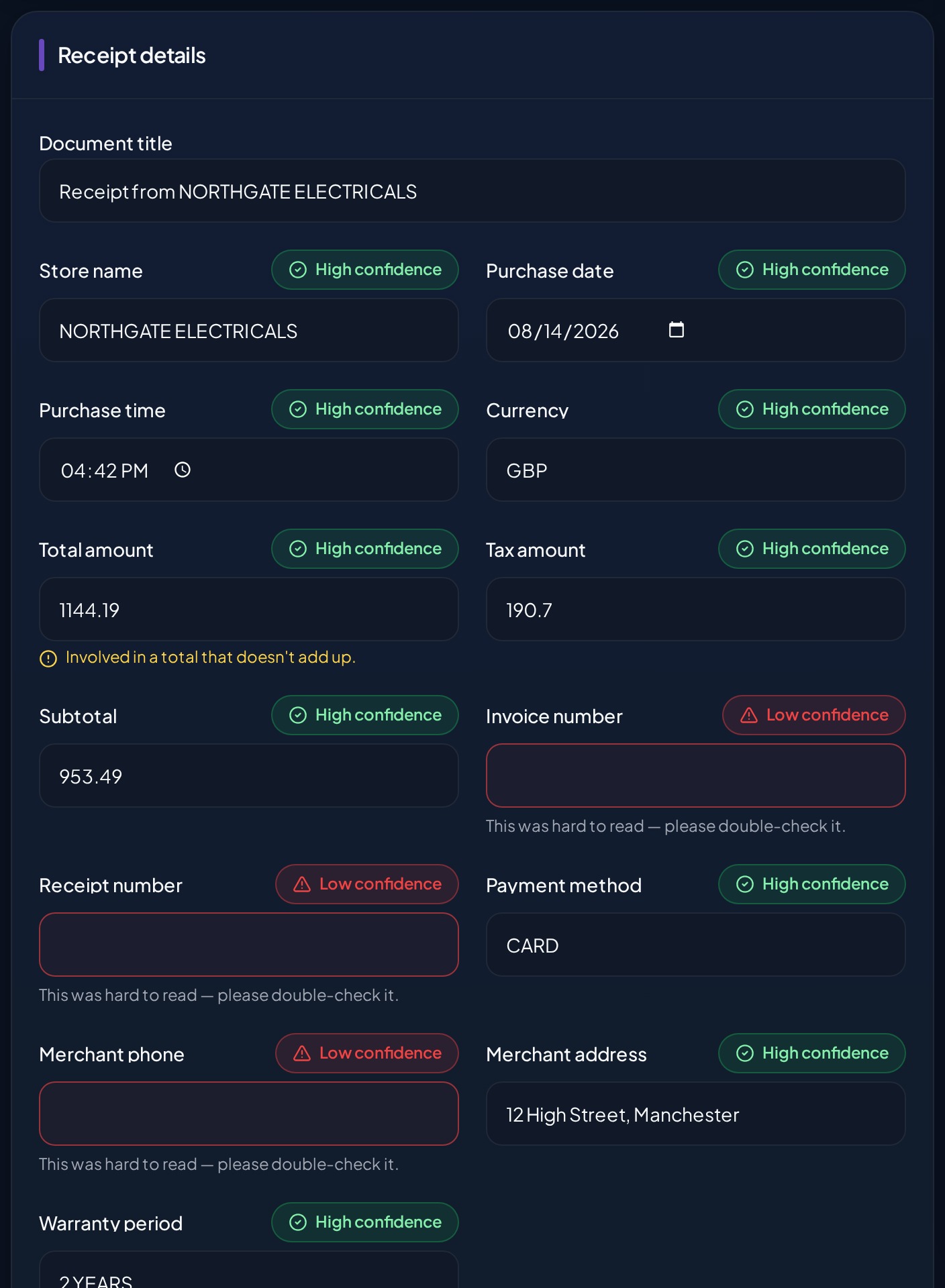
- 1Open the item, or open the saved receipt.
- 2Choose the option to link a record.
- 3Pick the item the receipt belongs to, or create a new item from it.
- 4Confirm the link.
- 5Repeat for documents and photos.
What Vekrin does
Check
Check the item you are linking to is the right one before confirming, especially where you own several of the same product.
Why this matters
A receipt on its own is hard to find later. Linked to an item, it turns up whenever you look at that possession.
What happens next
Topic 10 of 28
Documents
What this does
How to use it
- 1Tap + Add, then Add document.
- 2Choose the file to upload.
- 3Give it a clear name.
- 4Link it to the relevant item where supported.
- 5Save.
- 6Open a document any time to preview it.
What Vekrin does
Check
Check the home and links before saving. Permanent deletion removes the file and cannot be undone; do not delete evidence you may still need.
Example
Typical documents: an appliance manual, a home insurance policy, proof of purchase, a manufacturer's warranty certificate, an inspection certificate, vehicle insurance, a finance agreement and a service or repair invoice.
What happens next
Screenshot pending
Screenshot pending: the Documents list and preview screens are not in the approved screenshot library yet.
Topic 11 of 28
Warranties
What this does
How to use it
- 1Tap + Add, then Add warranty.
- 2Choose the item it belongs to.
- 3Enter the start date.
- 4Enter the end date.
- 5Attach the supporting document if you have one.
- 6Save.
On this screen
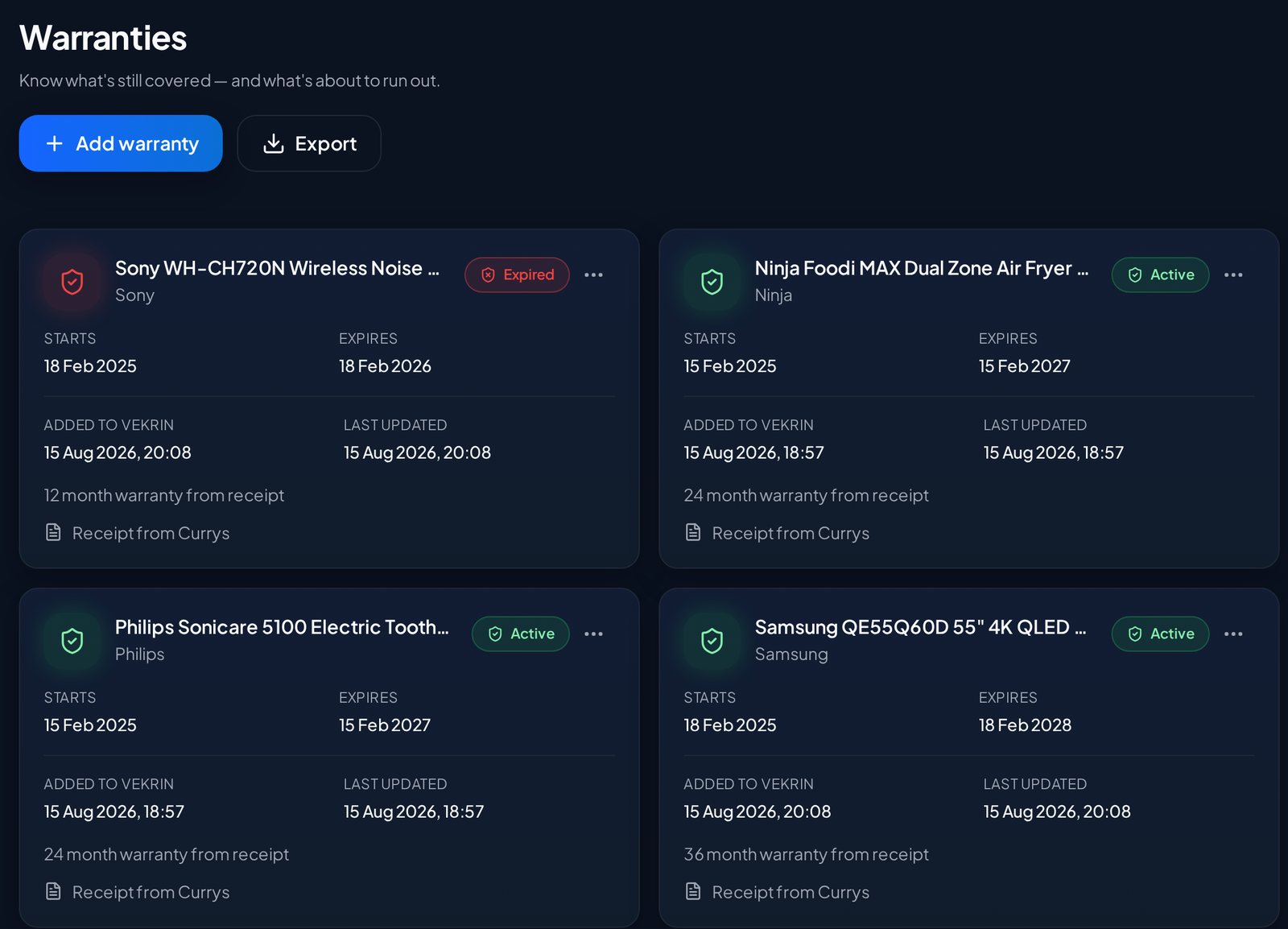
- 1Warranty list with each item's cover.
- 2Status — active, expiring soon or expired.
- 3End date.
- 4The item the cover belongs to.
What Vekrin does
Check
Cover often starts on the purchase date rather than the delivery date. Use the date printed on the receipt where they differ.
Example
Vehicle-linked warranties can include the vehicle warranty itself, a repair warranty, a battery warranty, a tyre warranty or a motorhome appliance warranty — all using the same warranty records.
What happens next
Topic 12 of 28
Bills
What this does
How to use it
- 1Tap + Add, then Add bill.
- 2Enter what the bill is for and the amount.
- 3Set the due date.
- 4Set the status.
- 5Attach the bill document if you have it.
- 6Save.
- 7Open Bills from the bottom navigation to see them all.
What Vekrin does
Check
A due bill is not automatically money already spent. Check payment status, amount paid and any schedule. Unconfirmed reconciliation rows stay out of Spending totals.
Example
A monthly energy account can hold its invoices and due dates in Bills. Each confirmed paid instalment is an economic event in Spending; the annual commitment is not counted again.
What happens next
Topic 13 of 28
Spending
What this does
How to use it
- 1Open Spending for the current home.
- 2Choose a period: this week, 30 days, month, year or all time.
- 3Filter by category, merchant, vehicle, member or household.
- 4Review uncategorised or unassigned purchases.
- 5Correct a category, merchant or allocation where needed.
- 6Export the view when you need a copy.
What Vekrin does
Check
Review queues contain purchases you can actually correct. Unconfirmed reconciliation rows do not enter totals. A scheduled or unpaid bill stays in Bills and is not presented as paid spending.
Tip
Use the vehicle filter to understand recorded ownership costs without mixing them with unrelated household purchases.
What happens next
Topic 14 of 28
Connected Inbox
What this does
How to use it
- 1Open Connected Inbox and choose Connect Gmail.
- 2Read the consent screen and grant separate read-only Gmail access.
- 3Start a manual scan when you want Vekrin to look for likely messages.
- 4Choose Read with AI for a candidate, or Ignore it.
- 5Review the extracted supplier, amount, dates, status and document.
- 6Dismiss it, restore it later, or confirm Add to Bills.
- 7Reconnect if Google access expires, or disconnect the mailbox in Settings.
What Vekrin does
Check
The Gmail permission is read-only, but mailbox content is sensitive. Review every candidate before filing. Outlook is not currently available, and Amazon sign-in does not import orders or purchases.
Why this matters
Identity sign-in and mailbox consent are separate: connecting with Google or Amazon does not silently connect an inbox.
What happens next
Topic 15 of 28
Reminders
What this does
How to use it
- 1Open Settings, then Reminders.
- 2Choose whether in-app reminders are enabled.
- 3Choose bill and warranty reminder preferences.
- 4Keep due dates and vehicle maintenance dates current.
- 5Open the notification area to review what is approaching, due, overdue or missed.
What Vekrin does
Check
Push and email reminder delivery are not currently available. A reminder depends on the date and status in the underlying record, so correct the record if the reminder is wrong.
What happens next
Topic 16 of 28
Inventory
What this does
How to use it
- 1Open Inventory from the bottom navigation.
- 2Filter by room or category to narrow the list.
- 3Tap an item to open its record.
- 4Review its photos, values and serial details.
- 5Check the linked receipt, documents and warranty.
- 6Edit or archive the item from its record.
What Vekrin does
Check
Archiving keeps an item's history without showing it in the active list. Deleting removes it and its links permanently.
Example
Typical example: you buy a TV, scan the receipt, create or link the TV item, add a photo, record the warranty, and the evidence stays together from then on.
What happens next
Topic 17 of 28
Wardrobe
What this does
How to use it
- 1Open Wardrobe from Inventory or the navigation.
- 2Add an item, or open an existing possession and file it under Wardrobe.
- 3Add photos so the piece is recognisable.
- 4Record the details that matter: type, size, colour, material and season.
- 5Link the receipt or document that proves the purchase.
- 6Use Find from receipts to review pieces Vekrin spotted on receipts you already scanned.
What Vekrin does
Check
Find from receipts only proposes items. Nothing is added to your Wardrobe until you confirm it, and confirming reuses the existing purchase and receipt rather than creating a copy.
Tip
Items can come from manual entry, receipts, uploaded evidence, existing Inventory records, or AI-assisted photo identification where it is available — and every AI suggestion is reviewed by you first.
Example
Typical example: you scan a supermarket receipt, Vekrin proposes the jacket line for review, you accept it, and the jacket becomes one Wardrobe item with its price and original receipt already linked.
What happens next
Screenshot pending
Screenshot pending: no approved Wardrobe product screen is available in the guide library yet.
Topic 18 of 28
Jewellery Box
What this does
How to use it
- 1Open Jewellery Box from Inventory or the navigation.
- 2Add a piece, or file an existing possession under Jewellery Box.
- 3Photograph it clearly, including any markings.
- 4Record the reference or serial number where there is one.
- 5Link the purchase receipt, certificate, valuation and warranty.
- 6Review the pieces with missing evidence and fill the gaps.
What Vekrin does
Check
Vekrin records what you provide. It does not authenticate a piece, does not value it for you, does not track current market prices and does not provide insurance cover.
Tip
A valuation only stays useful while it is recent. Vekrin Home flags pieces whose recorded valuation is getting old so you know what to refresh.
Example
Typical example: a watch with its shop receipt, box photos, reference number, service warranty and a valuation letter — all attached to one record you can export as evidence.
What happens next
Screenshot pending
Screenshot pending: no approved Jewellery Box product screen is available in the guide library yet.
Topic 19 of 28
Garage
What this does
How to use it
- 1Tap + Add, then Add vehicle.
- 2Enter what it is — type, make, model and registration.
- 3Add photos so the vehicle is recognisable.
- 4Record the dates that matter: inspection, tax, insurance and finance.
- 5Link the documents, receipts, bills and warranties that belong to it.
- 6Add servicing and repairs as they happen.
On this screen
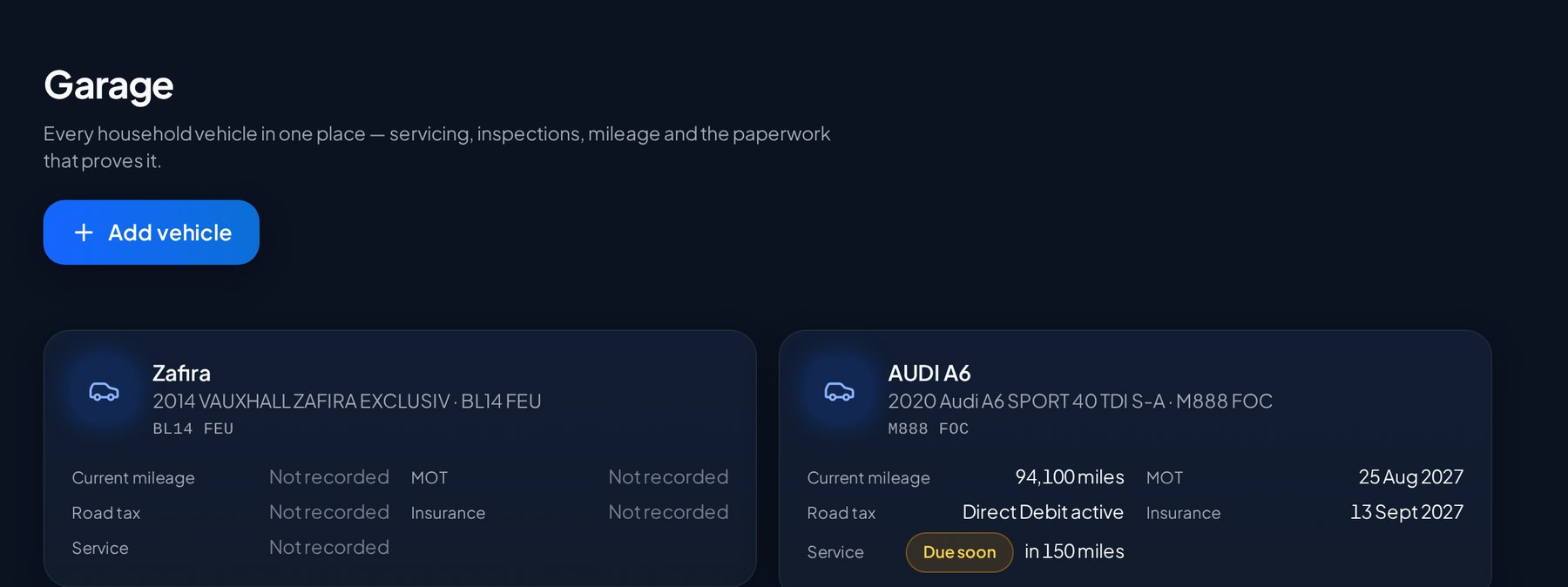
- 1Garage list — each household vehicle and its next attention date.
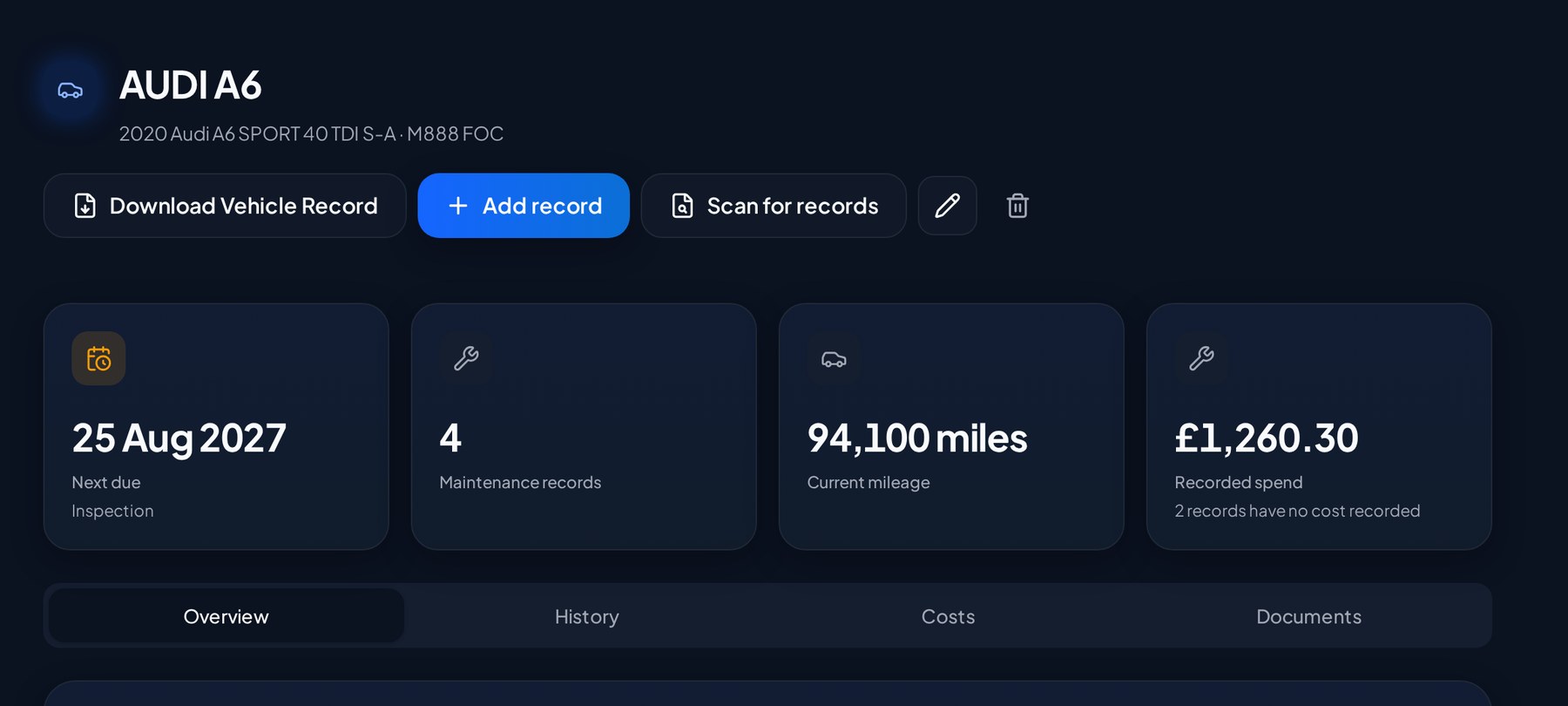
- 2Vehicle header — identity, registration and mileage.
- 3Due dates — inspection, tax, insurance, service and applicable checks.
- 4History and costs — servicing, repairs and linked evidence.
- 5Vehicle Record — a separate vehicle-specific export.
What Vekrin does
Check
Vekrin organises the records you add or connect. It does not check live inspection, insurance, finance or market value, and it does not track location.
Tip
Motorhomes can combine vehicle records with household-style equipment, documents and inventory — mechanical service, habitation service, leisure battery, fridge warranty and the TV as an inventory item — without creating a separate system.
Example
One record can help another make sense. A repair invoice linked to your Audi A6 appears in Documents, appears in the vehicle's history, contributes to vehicle costs where payment evidence exists, and can be found by Vekrin Assistant.
What the pack contains
A vehicle can gather: insurance, finance, inspection, road tax, servicing, repair invoices, receipts, warranties and reminders.
What happens next
Topic 20 of 28
Insurance Pack
What this does
How to use it
- 1Add the possessions you want included.
- 2Add photos to each one.
- 3Link receipts and other evidence.
- 4Record values.
- 5Attach supporting documents.
- 6Review anything flagged as missing evidence.
- 7Open Insurance Pack.
- 8Confirm the home it should cover.
- 9Generate and export the pack.
- 10Open the PDF and review it before sending it anywhere.
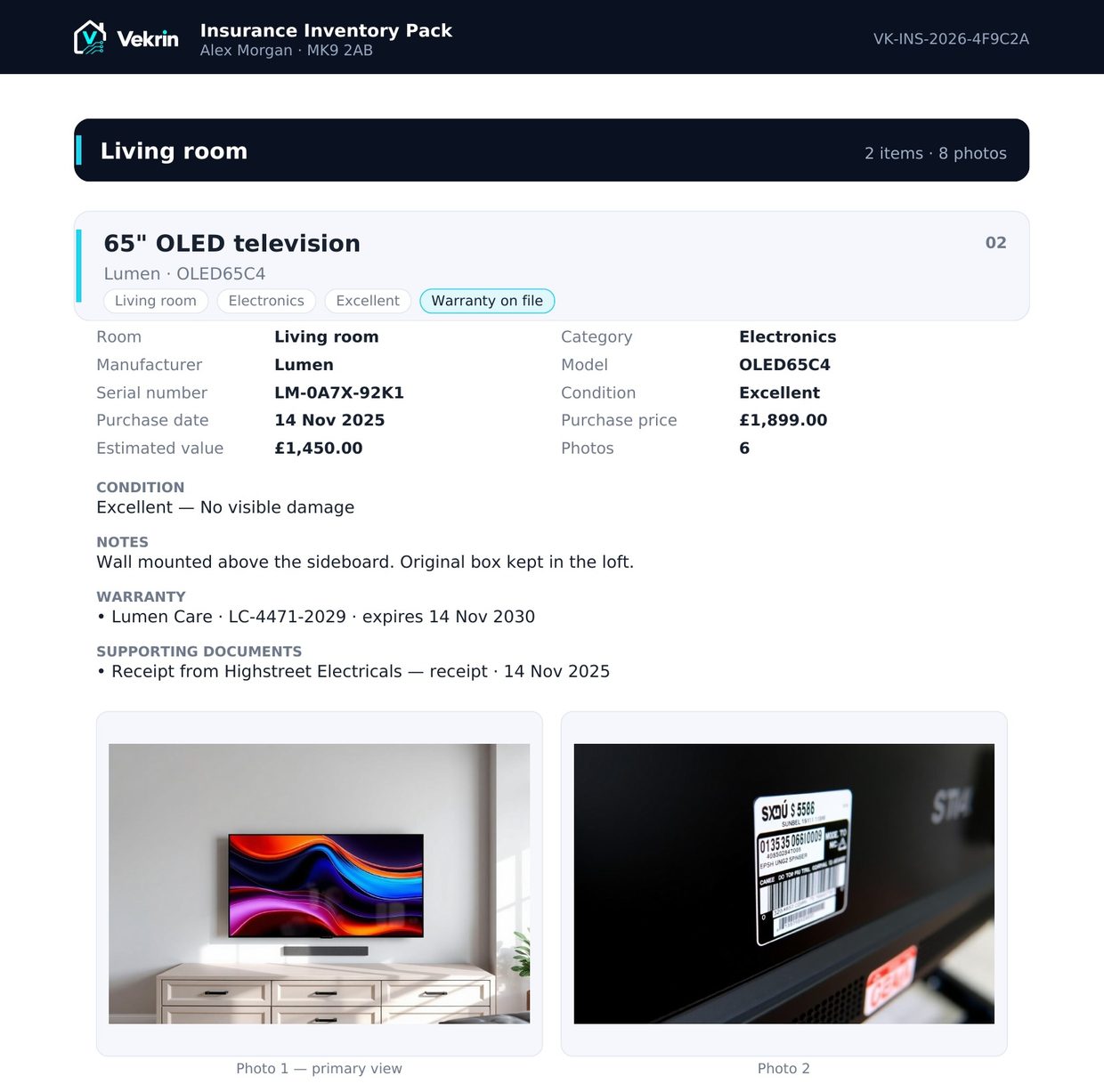
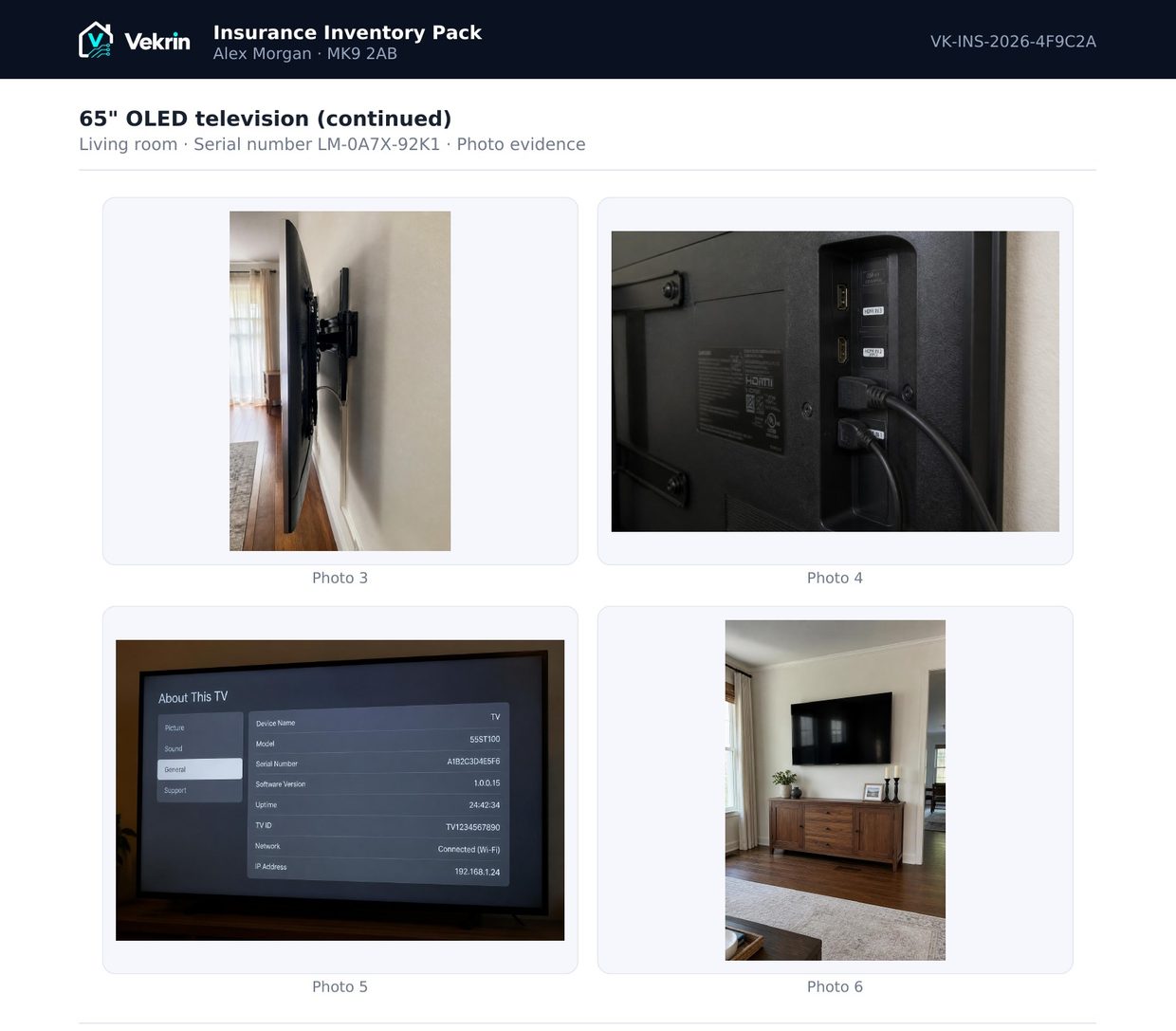
What Vekrin does
Check
Read the PDF before sharing. If price visibility is hidden for a member, monetary fields are omitted from exports rather than exposed or replaced with blanks.
What the pack contains
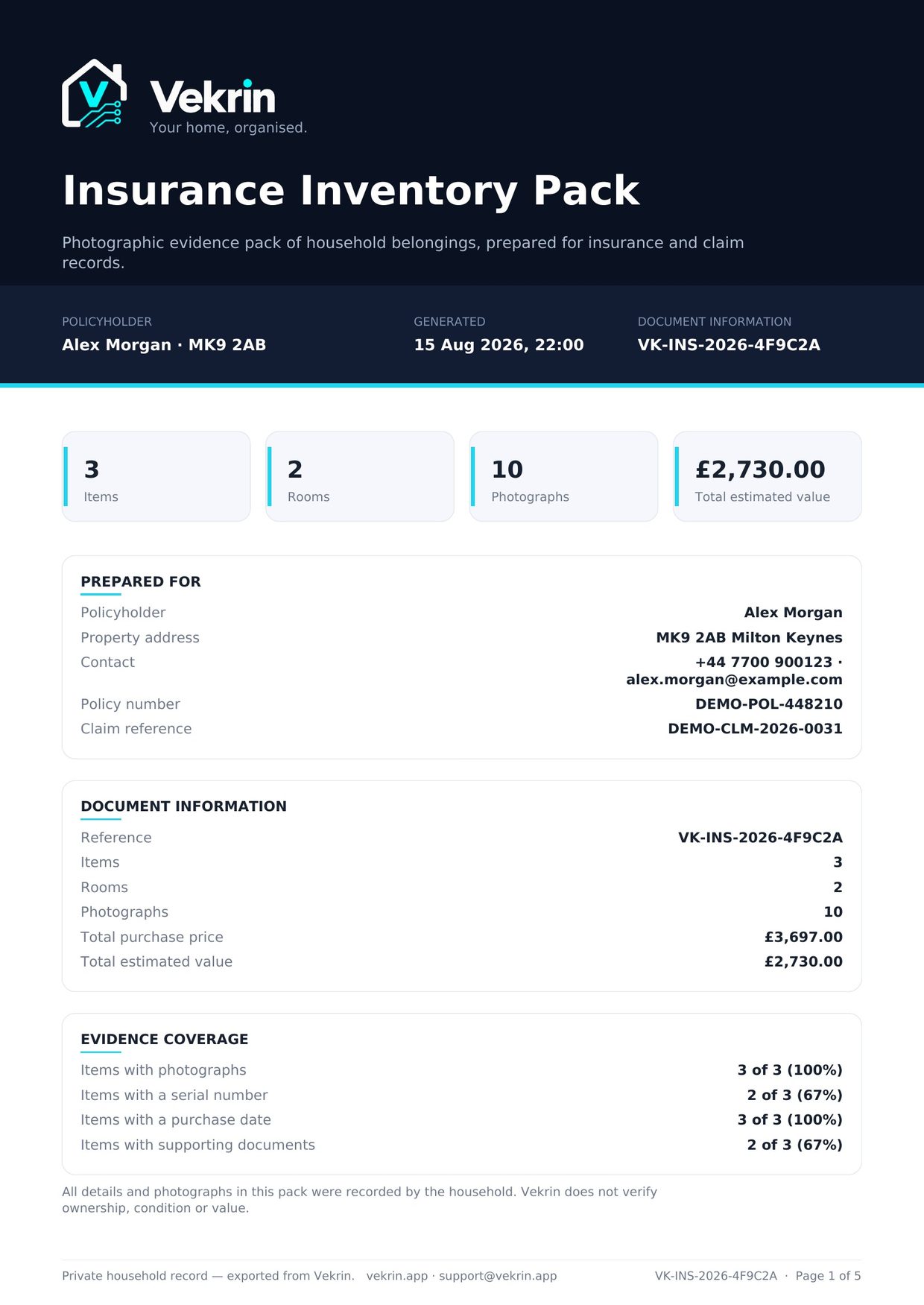
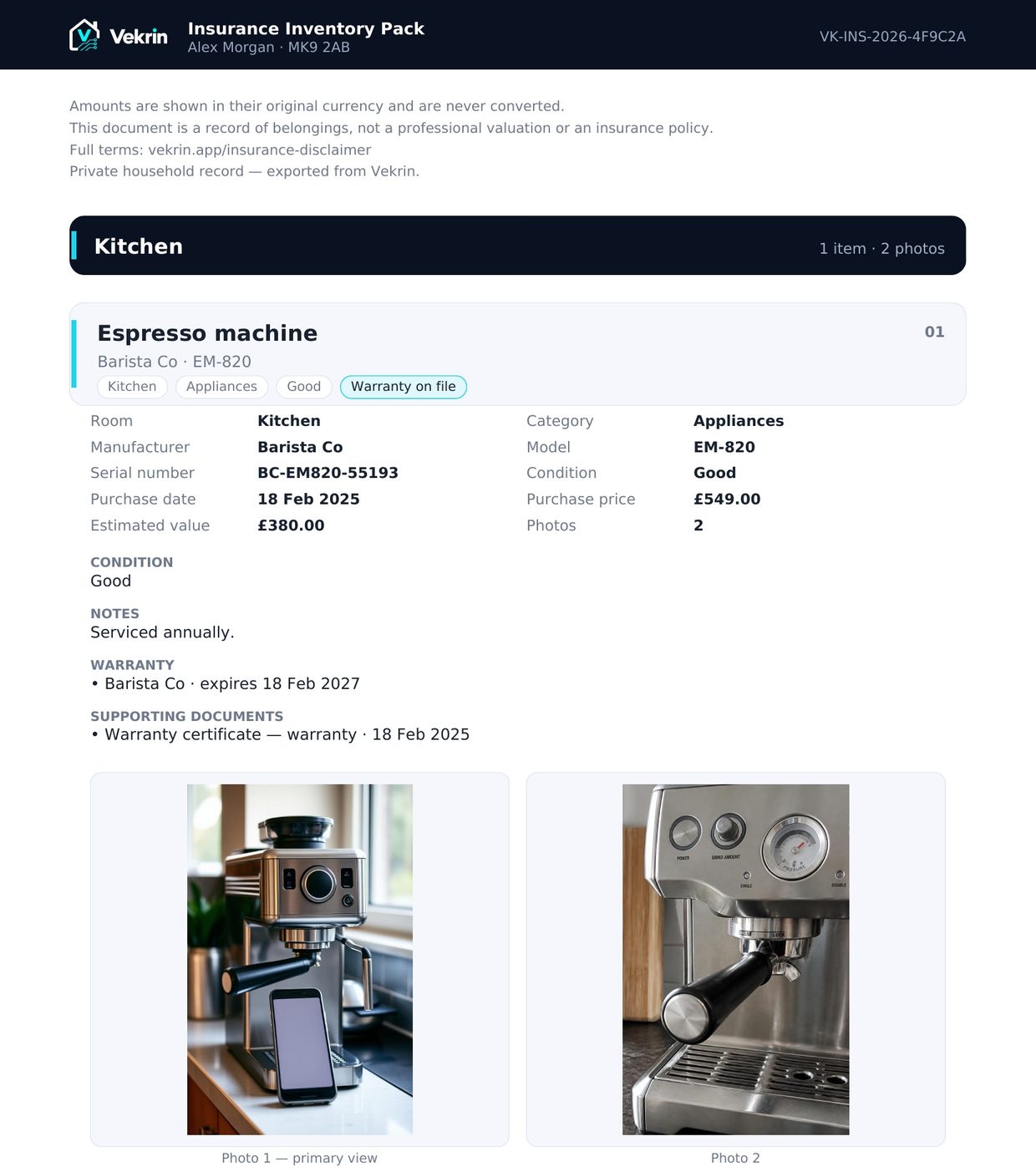
Depending on scope and available records: cover and summary pages, room or collection groupings, item details, photos, recorded values, warranties, linked documents and source proof.
What happens next
Vekrin helps organise household information and evidence. It is not insurance advice, and requirements vary by insurer and policy.
Topic 21 of 28
Household members
What this does
How to use it
- 1Open the household members area for the home.
- 2Choose Invite.
- 3Enter the person's email address.
- 4Choose their access level.
- 5Send the invitation.
- 6They accept from their email and join that home.
On this screen
- 1Owner — manages records, settings, members and the home lifecycle.
- 2Adult — can maintain inventory, documents, bills and spending.
- 3Viewer — can look without changing records.
- 4Price privacy — owners can hide monetary values from members.
What Vekrin does
Check
Give viewer access when someone only needs to look. Only owners manage invitations and home settings. Removing or leaving one home does not expose or change another home.
What happens next
Topic 22 of 28
Vekrin Assistant
What this does
How to use it
- 1Open the Assistant from the Ask launcher.
- 2Type a question in your own words.
- 3Read the answer and the records it refers to.
- 4Open a referenced record to check it yourself.
- 5Ask a follow-up if you need more detail.
Example questions
- 1When does my TV warranty expire?
- 2What did I pay for the washing machine?
- 3When is my Audi inspection due?
- 4Find the repair invoice for my car.
- 5When was the Audi last serviced?
- 6Which warranties expire soon?
- 7How much have I spent on the Audi this year? (Vekrin Home)
What Vekrin does
Check
The Assistant cannot delete or archive records, change members, disconnect integrations, alter subscriptions or payments, send evidence or email, make payments, or run bulk destructive actions. If several records match, clarify which one you mean.
What happens next
Topic 23 of 28
Vekrin Voice
What this does
How to use it
- 1Open the Assistant and choose Start voice conversation.
- 2Allow microphone access the first time you use it.
- 3Ask a question out loud, or say what you would like changed.
- 4Read the written answer, which appears before Vekrin speaks it.
- 5For a change, Vekrin finds the record and shows a confirmation card with exactly what will be updated.
- 6Confirm or cancel — you can edit supported fields such as a date or an amount first.
- 7Vekrin makes the validated change, and offers Undo where the change is safely reversible.
On this screen
- 1Vekrin never changes a household record silently: your request, a proposal, your confirmation, a server check, then the change.
- 2Confirm with a short spoken yes or no, or tap the buttons on the card. A long sentence is never treated as a confirmation.
- 3If more than one record matches — say you own two televisions — Vekrin asks which one you mean instead of guessing.
- 4Vekrin can propose a few related changes together, for example a service record, its cost and the new mileage. You see the whole proposal before confirming.
- 5Undo is offered where a change is safely reversible.
- 6Citations stay on screen and are not read out.
- 7Audio is processed for transcription; Vekrin does not store raw voice recordings.
What Vekrin does
Check
Vekrin Voice is a Vekrin Home feature. On Free the control is visible but asks you to upgrade, and typing keeps working exactly as before.
Check
Sensitive or destructive account actions are not available through Vekrin Voice. It cannot delete records, documents, receipts or photos, change or remove household members, alter your subscription or payments, buy anything, disconnect a connected account, send your evidence to anyone, or change anything on its own.
Tip
Everything Voice can do is also available by typing in the Assistant — the same proposal and confirmation card appears.
Why this matters
Voice never activates on its own and there is no wake word — nothing is captured until you start a conversation. While one is open, your speech is sent securely for transcription, and only the text transcript and answer are kept in your conversation history.
Example
You: “Move my black jacket to Wardrobe.” Vekrin: “Move Black Jacket from Household Inventory to Wardrobe?” with Confirm and Cancel. After you confirm: “Done. Black Jacket is now in Wardrobe.”
What happens next
Topic 24 of 28
Memory (internal beta)
What this does
How to use it
- 1Open Settings and find Memory if it is available.
- 2Enable or disable personal memory.
- 3If permitted, enable or disable household memory.
- 4Review suggestions and choose Remember, Not now or Never.
- 5Confirm, edit or forget an individual memory.
- 6Open its history to understand why it is present, or clear memories.
What Vekrin does
Check
Memory is not the Household Record itself and does not silently rewrite inventory, bills or documents. Review suggestions before choosing Remember.
Check
Internal beta, limited availability: accounts without access do not see the Memory section.
What happens next
Topic 25 of 28
Household Intelligence
What this does
How to use it
- 1Open Intelligence from the navigation.
- 2Choose Run analysis when you want a fresh review.
- 3Read the household health score and What we noticed cards.
- 4Open the records behind an insight and correct the underlying information.
- 5Dismiss an insight you do not want to see again.
- 6Use the household timeline to revisit purchases, documents, bills and other recorded events.
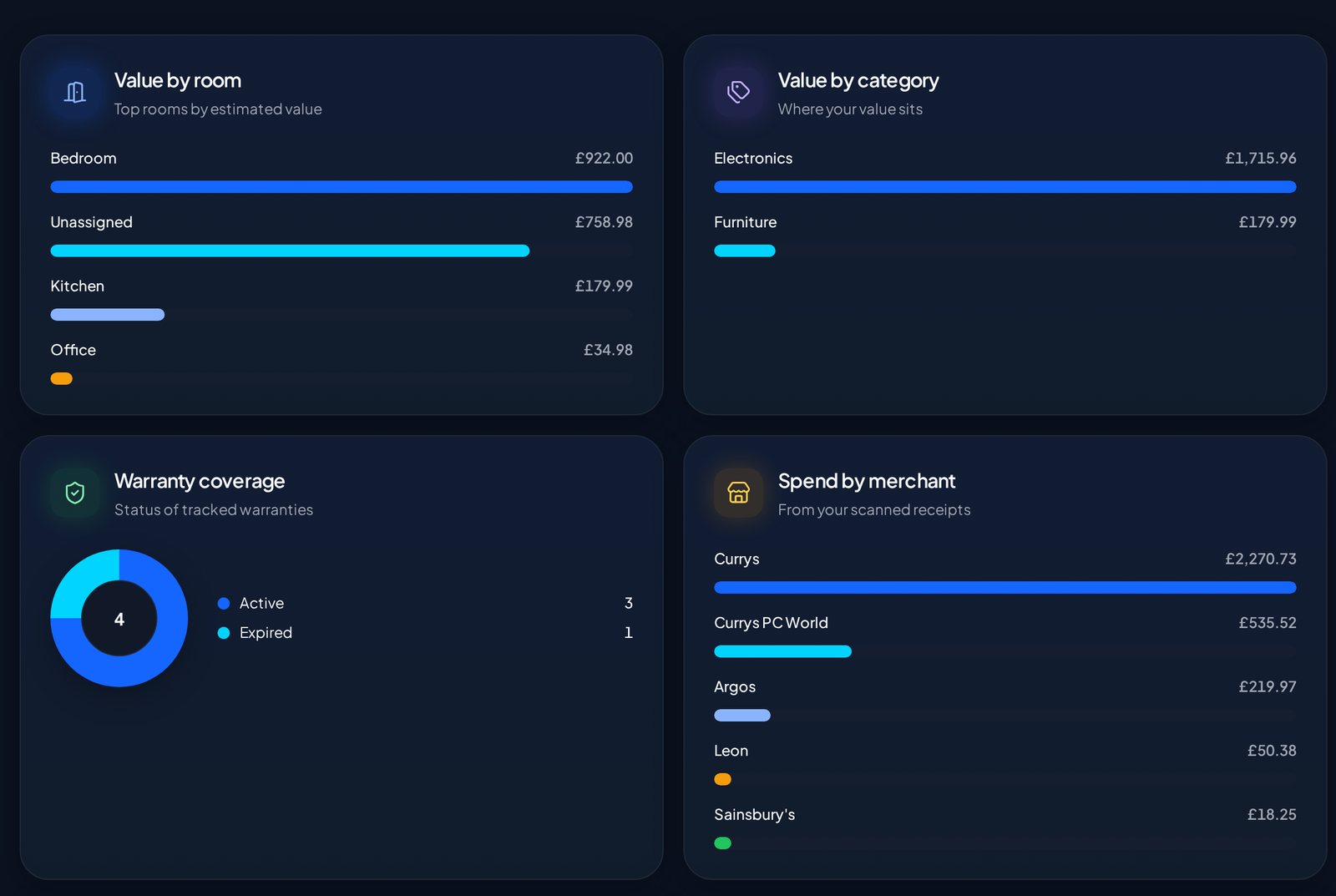
On this screen
- 1Household health score from recorded completeness.
- 2What we noticed cards for actionable gaps and dates.
- 3Dismiss controls for signals you no longer want.
- 4Household timeline linking back to recorded events.
What Vekrin does
Check
A low score or attention card means the recorded information could be more complete or a date is approaching. It is not a safety judgement, insurance decision or professional advice.
What happens next
Topic 26 of 28
Search & notifications
What this does
How to use it
- 1Open Search from the navigation.
- 2Type at least two characters from an item or vehicle.
- 3Choose an Inventory or Garage result to open it.
- 4Open Notifications to review reminders and updates.
- 5Follow a notification to the related record where a link is available.
What Vekrin does
Check
Switch homes first if the item or vehicle belongs elsewhere. Use the relevant Documents, Receipts, Bills or Warranties area to find those record types.
Example
Example searches: television, Audi, AB12 CDE or part of a VIN.
What happens next
Topic 27 of 28
Export & sharing
What this does
How to use it
- 1Open the records you need to export.
- 2Choose CSV or PDF where that module supports it.
- 3For a general PDF, choose whether to include source evidence; that choice lasts only for the current session.
- 4For an Insurance Pack, choose Household Inventory, Wardrobe or Jewellery Box.
- 5For a vehicle, open Garage and generate its separate Vehicle Record.
- 6For insurer access, choose one home, scope, whether values or pack download are allowed, and an expiry.
- 7Review access history and revoke the grant when it is no longer needed.
What Vekrin does
Check
Review every export before sharing. Vehicles are excluded from Insurance Pack scopes. Price privacy omits hidden monetary fields. JSON account export is for your data and is not a formatted insurance document.
What happens next
Topic 28 of 28
Account & settings
What this does
How to use it
- 1Open More, then Settings.
- 2Update profile and home-specific language, region, currency, timezone or units.
- 3Manage household members, price privacy, insurer access, rooms and categories if your role permits.
- 4Review usage for homes, inventory, documents, vehicles, monthly scans and Assistant actions, email capabilities and pooled storage.
- 5Manage reminders, Voice, connections, installation, billing and security.
- 6Download a JSON account export when you need a copy.
- 7To delete the account, read the consequences and type DELETE exactly.
What Vekrin does
Check
Home archive, permanent home deletion, leaving a home and deleting the whole account are different actions. Export first, confirm the active home and read every destructive confirmation carefully.
What happens next
Common tasks
How do I…
- Add a new possessionGo to guide
- Scan a receiptGo to guide
- Add a vehicleGo to guide
- Add a documentGo to guide
- Add a warrantyGo to guide
- Add a bill or accountGo to guide
- Review household spendingGo to guide
- Connect or review Gmail invoicesGo to guide
- Set reminder preferencesGo to guide
- Invite a household memberGo to guide
- Ask Vekrin AssistantGo to guide
- Create an Insurance PackGo to guide
- Export a Vehicle RecordGo to guide
- Manage settings, homes or account dataGo to guide
Still need help?
If something in Vekrin does not behave the way this guide describes, email us and tell us which screen you were on.
Email Vekrin supportReady to set up your home?
Work through the guide as you go — the first receipt is the fastest way to see how it fits together.